
February 2026’s Flow release adds enhanced integration capabilities, including Fortnox REST/SIE support and a new Send Tabular Data trigger for InVision-backed workflows, plus monitoring via Application Insights. The portal gets easier organization with drag-and-drop and AI-powered in-designer help, while AI agents gain a code mode for more efficient tool use. Security and governance improve with Workspace-scoped API keys, and there’s a broad set of UX, performance, and reliability enhancements alongside fixes for Flow execution status, UI scrolling, and Service Bus trigger behavior.
Fortnox
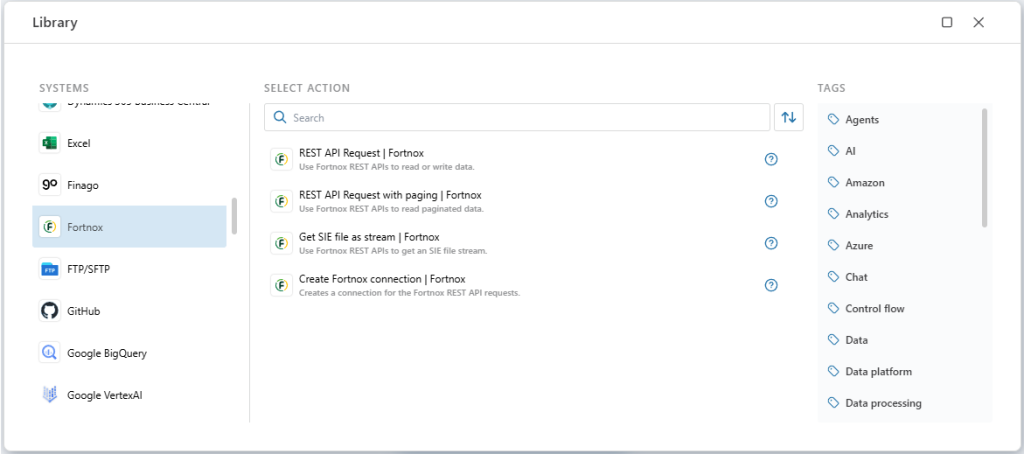
The February 2026 update introduces support for the Fortnox REST API, enabling easier development and operations of Fortnox data integrations with Flow. We support both simple APIs and APIs retuning paged responses (such as large data sets). In addition, we also support the SIE file API.
Read more here
SIE file format
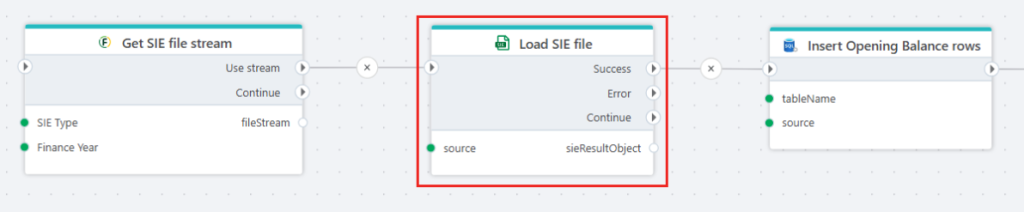
The SIE file format is the de facto standard for transferring accounting data in Sweden and an open standard supported by different software products operating in the Swedish market.
The SIE file action in Flow makes it easy to read the contents of SIE files as tabular data and then apply any business logic, such as saving the data to a database, convert it to Parquet files, perform calculations, and so on.
Read more here
(Re)organize Flow and Folders
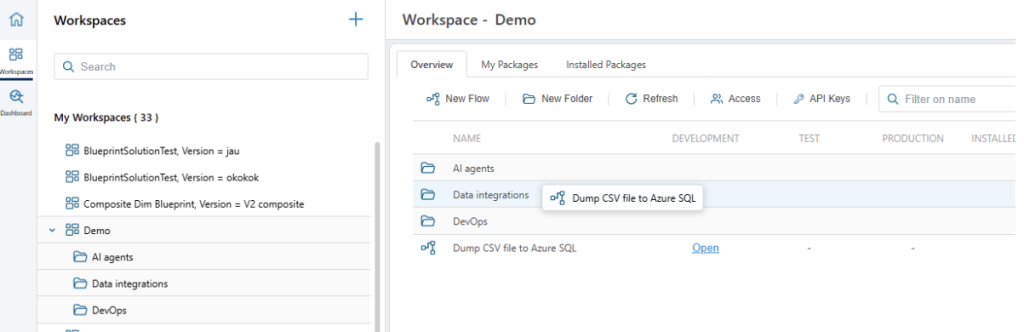
In the Flow portal, you can now organize Flows and Folders using drag and drop, making it easier to manage large Workspaces with many Flows related to different business domains or processes.
You can drag and drop folders into or out of folders, or Flows between folders. Note that files and folders can be drag/dropped both in the main panel, and between the main panel and the folders displayed in the Workspace explorer on the left.
Application Insights
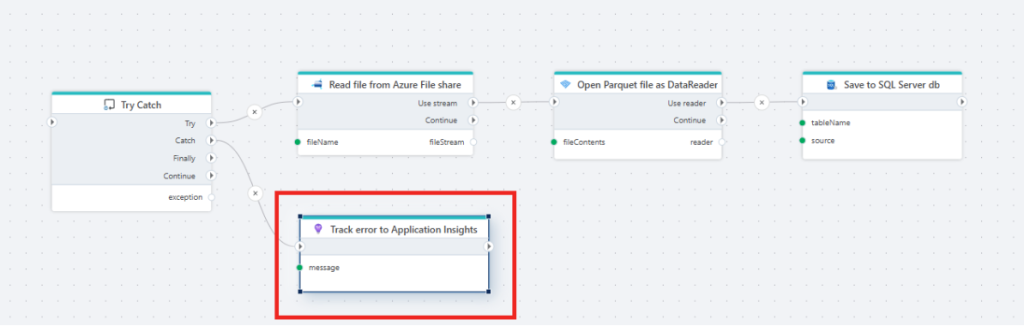
Because monitoring and diagnostics is a vital part of IT operations, we’re enabling Flow developers to send diagnostics information to Application Insights from flows. This gives Flow developers full control over what type of data they want to collect and send, and for which automations they want to enable central monitoring through Application Insights and Azure Monitor.
Read more here
Dynamic connections for Microsoft Foundry actions
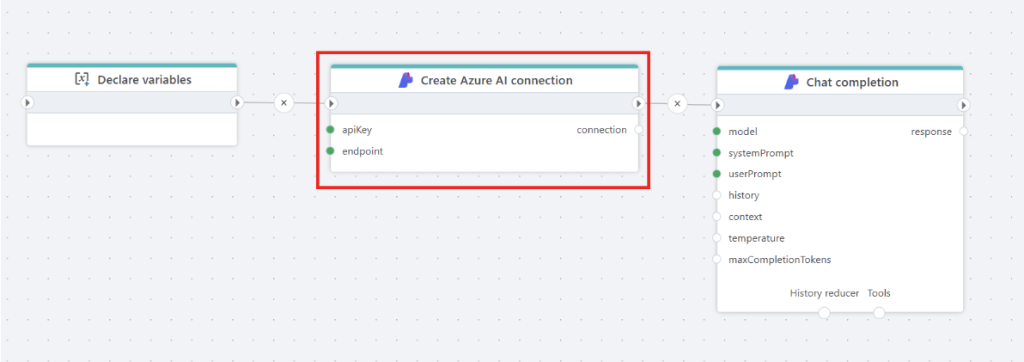
With support for dynamically creating connections to Microsoft Foundry models, you can create AI-powered automations that use subscriptions managed outside of Flow. For example, you want to create a generic AI chat solution in Flow, but each customer needs separate AI model subscriptions in Microsoft Foundry so quotas (token usage), billing and other options can be managed individually.
Integrated AI powered help
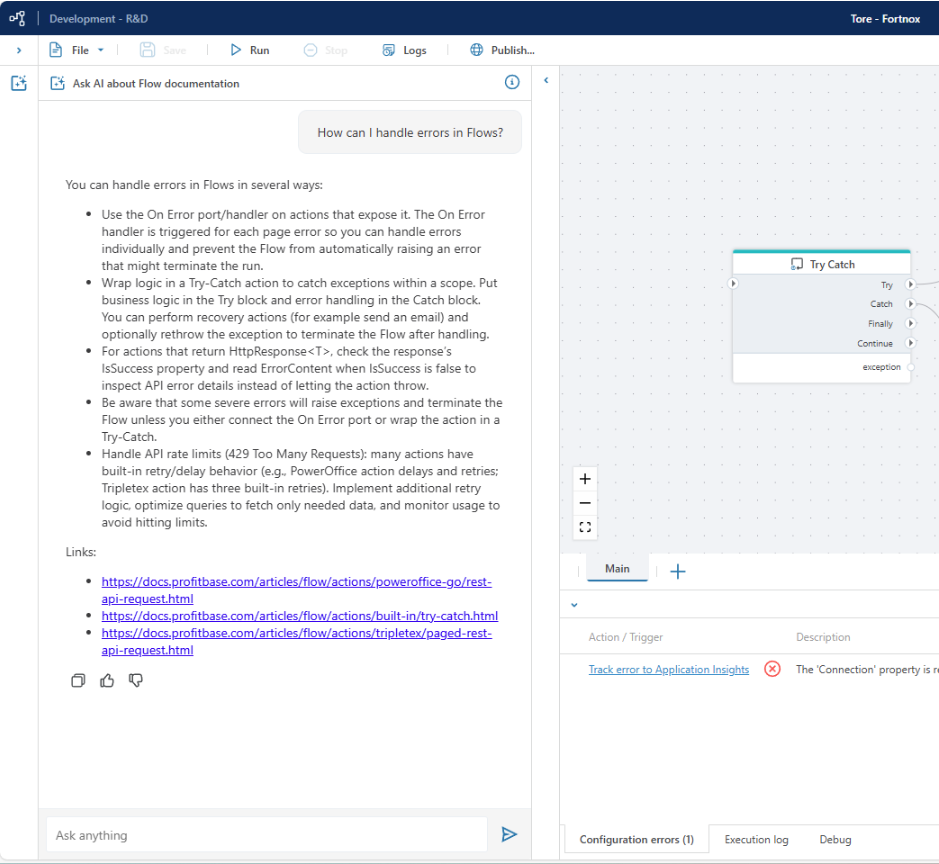
You can now ask for help building Flows directly within the Flow designer instead of having to to go the docs site. (docs.profitbase.com). Simply open the docs chat window from the left sidebar and start chatting with the AI docs assistant.
AI agents – code mode and tool use improvements
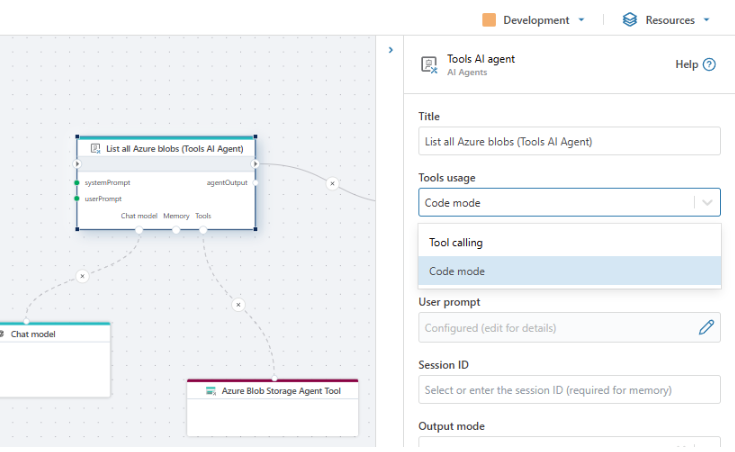
The Tools AI Agent and A2A AI Agent can now use code mode when calling tools.
In Code mode, instead of calling each tool individually, the agent generates a single piece of code that uses all required tools and then executes it. For complex, multi-step tasks, this means the agent only needs to discover the APIs, write the code, and run it — typically requiring only two or three calls rather than one per tool.
Code mode should be considered for complex, multi-step tasks that require passing large amounts of data data between tools (like files or datasets). In these scenarios, code mode generally performs better and consumes considerably fewer tokens than standard tools calling.
Also, because data is not passed between tools via the LLM, this means that sensitive business data is far less exposed (often not at all) than when regular tool calling is used.
Workspace scoped API keys
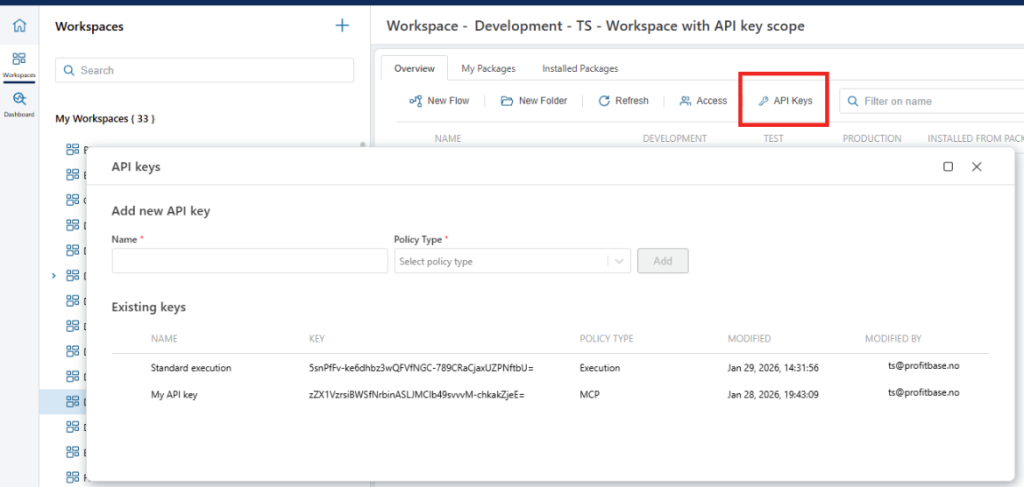
We now support defining API keys for individual Workspaces and not just on the Tenant level. This enables more granular access control to the Flow REST, MCP and A2A APIs, as developers can now organize Flows into Workspaces based on which external clients should be allowed to call those APIs.
Read more here
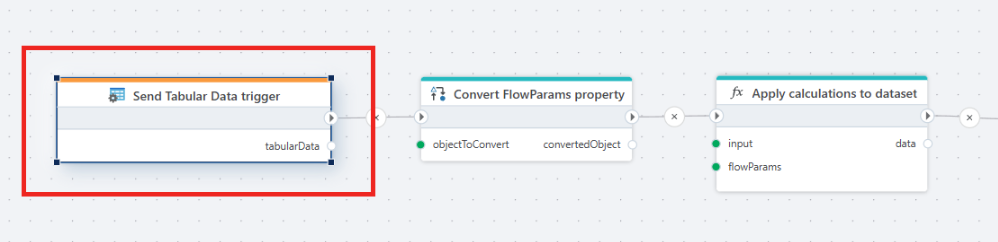
Send Tabluar Data trigger – Flow as InVision backend
The Send Tabular Data trigger makes it easy to use Flow as a backend service for processing datasets directly from the InVision UI without having to go through the InVision backend or database. The primary use case of this trigger is to handle the Send Data request of an InVision Worksheet or Table. It enables the dataset and any parameters sent from InVision to easily be used in Flow to perform business logic, such as calculations. An updated dataset can then optionally be returned to InVision and rendered in the UI.
Other enhancements
- Added support for cancelling a pending restart of a Flow, submitted by the Restart Flow action
- Flows pending restart is now displayed in a separate tab in the Portal. This makes it easier to distinguish between regular scheduled Flows and Flows pending restart from the Restart Flow action
- Search vectors now support the IN filter
- Specifying
Contextfor Save vectors is now optional if you handle deletion of old vectors manually - You can now edit connections directly from the Connection property of actions, instead of going through the Workspace Objects popup
- Parquet: Support handling of tinyint (8 bit) and smallint (16 bit) data types
- Improved handling of process termination during Flow executions – Flows will now be marked as Failed if the process is terminated by Azure Kubernetes Services. This typically happens when memory limits are exceeded.
- Introduced basic memory throttling to long-running jobs, meaning the system applies back-pressure to the worker queue if available memory is low and will delay starting background jobs.
- Support for search in SQL and PostgreSQL object explorers
- We extended the Outlook connector to support fetching emails from personal and shared mailboxes.
Bug fixes
- Fixed issue with selecting the argument for a Start Flow action
- Fixed issue with flickering scrollbars when trying to select the last variables, and the variable name is long
- Fixed an issue where the status of pending Flow executions, submitted by the Restart Flow action, showed incorrect next run date/time information
- Fixed an issue with the Azure Service Bus trigger that caused it to not auto create a topic and fail to process to messages
Happy automation!