
This release introduces several new features for data handling and workbook customization. Table filters can now be controlled dynamically through workbook variables, Startpages can be configured per Access Group, and Flow can be used as a backend for data loading and processing. Forms have been updated with additional heading options, and custom cell renderers are now available for data grids.
The application has also been upgraded to React 19.
Table Explorer
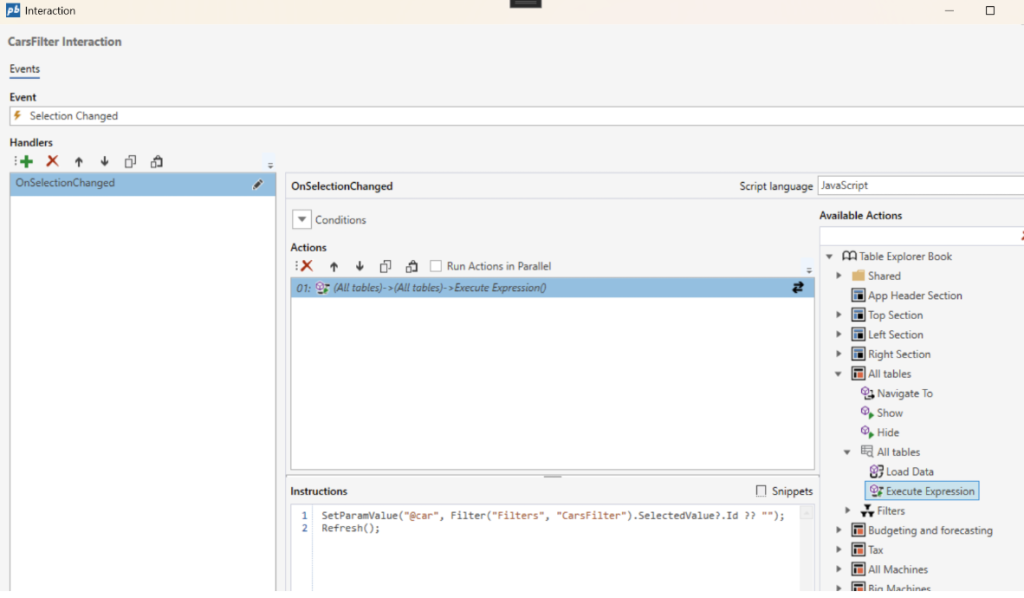
ou can now dynamically filter the data of tables displayed in the Table Explorer based on Workbook variables or filters.
This is achieved through the Execute Expression action by calling the SetParamValue(…), SetFilter(…) and Refresh() functions in the Instructions script, for example when a user changes the selected organization level, project or product.

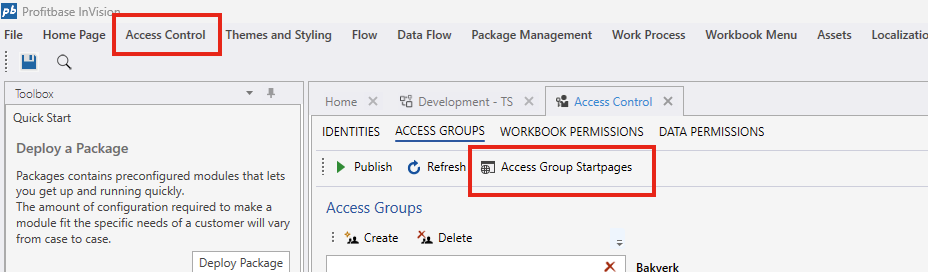
Startpage pr Access Group
We’ve added support for defining the default Startpage pr Access Group, meaning users of different roles can get a startpage that fit their workflow. For example, adminstrators or power users gets an operational focused startpage, project managers gets a project focused landing page, and operational personell gets a landing page tailored to just their workflow.
Use Flow as backend API for tabular data
You can now use Flow as the data backend for Worksheets, Tables, SQL Reports, and Table Views. This makes it possible to load data from external systems and apply advanced business logic, such as complex financial calculations, during data loading.
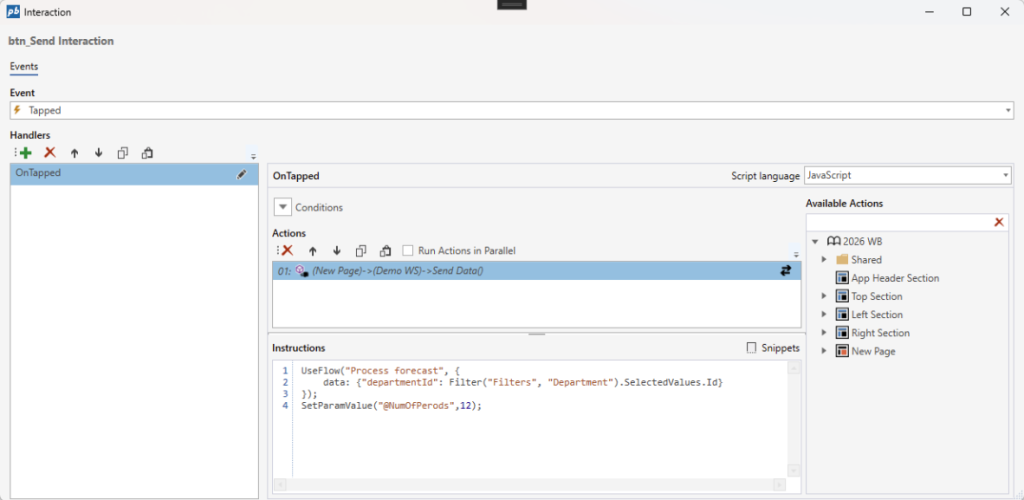
You can also send data directly from Workbooks to Flow for processing and optionally receive an updated dataset. By running customized business logic at load time, performance is significantly improved, as data no longer needs to be saved to the InVision data model before being processed by Flow or made available to other systems.
- To load data to a Worksheet, Table, SQL Report og Table View using Flow, simply call the new UseFlow(…) function in the
Instructions scriptof the component’sLoad Dataaction. - To send data to Flow from a Worksheet or Table, use the new Send Data action along with the UseFlow(…) function in the
Instructions script. If the Flow returns a DataPackage, the Worksheet or Table is updated accordingly.
SendData example
Forms
All Forms Input controls now has support for 3 new options Heading, HeadingPlacement and HeadingType. This reduces the amount of boilerplate code needed for building forms, because you no longer have to add separate heading components for each input control.

Other enhancements
- Solution developers can now use custom cell renderers for editing data in data grids (Worksheet and Tables). Note that the modified row(s) must set the
IsDirtyflag totruein order for the changes to be saved. - Upgraded to React 19
Enjoy!